This hands-on follow-up to Part 1 shows exactly how to set up NVIDIA Jetson Orin, enable NVIDIA GPU support in Docker, write cross-platform Dockerfiles (AMD64 + ARM64), and migrate your workloads to AWS—even if you don’t have Jetson hardware on your desk. We’ll cover configuration, verification, multi-arch builds with Buildx, and a practical EC2 setup path for GPU workloads.
Initializing Jetson with JetPack
To get started, download the NVIDIA SDK Manager on your PC, connect your Jetson to it, and follow the Jetson Orin Nano Getting Started Guide. JetPack installs the OS, NVIDIA GPU drivers, CUDA, cuDNN, TensorRT, and all dependencies needed to run AI workloads on Jetson hardware.
Flash your Jetson device using SDK Manager from an Ubuntu PC, and complete initial setup with keyboard, mouse, monitor, and network cable.
The ways to access Jetson from your PC and the easiest one
For a full explanation, read in Part 1: The ways to access Jetson from your PC, and the easiest one.
You can control Jetson either by connecting keyboard, mouse, and monitor directly, or by remote access methods such as:
- SSH over local network
- SSH over USB (for supported dev kits)
- Serial console
- VNC / RDP remote desktop
The easiest method: connect a network cable between Jetson and your PC, assign static IPs or enable DHCP sharing, then access via SSH.
How to share a network from your PC to Jetson Orin
For a full explanation, read in Part 1: How to Share Internet from Your PC to Jetson Orin.
If your Jetson doesn’t have Wi-Fi or router access, you can share your PC’s internet via Ethernet:
- Connect Jetson to PC via Ethernet
- On Ubuntu PC: Settings → Network → Wired → set IPv4 Method to “Shared to other computers”
- Reboot or replug if needed
Jetson will now get internet from your PC.
Installing Docker with NVIDIA GPU Support (NVIDIA Runtime)
On Jetson (ARM64) and PC (x86) , install:
$ sudo apt update
$ sudo apt install -y docker.io
$ sudo usermod -aG docker $USER
$ newgrp docker
$ sudo apt-get install -y nvidia-container-toolkit
On Jetson (ARM64):
Configure Docker to use NVIDIA Container Runtime:
$ sudo nvidia-ctk runtime configure --runtime=docker$ docker run --rm --runtime=nvidia nvcr.io/nvidia/12.6.11-devel:12.6.11-devel-aarch64-ubuntu22.04 nvidia-smi
On PC (x86):
Configure Docker to use NVIDIA runtime by editing /etc/docker/daemon.json:
$ sudo nano /etc/docker/daemon.json{
"default-runtime": "nvidia",
"runtimes": {
"nvidia": {
"path": "nvidia-container-runtime",
"runtimeArgs": []
}
},
"default-runtime": "runc"
}
You can optionally make nvidia the default runtime by changing “default-runtime” to “nvidia” — but only if all your containers require GPU.
Then restart Docker for both platforms:
$ sudo systemctl restart dockerVerify NVIDIA Runtime Integration (Testing GPU Access in Containers)
To test if GPU access is working:
On x86 (PC):
$ docker run --rm --gpus all nvidia/cuda:12.4.0-base-ubuntu22.04 nvidia-smiOn Jetson (ARM64):
$ docker run --rm --runtime=nvidia nvcr.io/nvidia/12.6.11-devel:12.6.11-devel-aarch64-ubuntu22.04 nvidia-smi
Example Output of nvidia-smi Command Inside the Container:
+---------------------------------------------------------------------------------------+
| NVIDIA-SMI 540.4.0                Driver Version: 540.4.0      CUDA Version: 12.6     |
|-----------------------------------------+----------------------+----------------------|
| GPU  Name                 Persistence-M | Bus-Id        Disp.A | Volatile Uncorr. ECC |
| Fan  Temp   Perf          Pwr:Usage/Cap |         Memory-Usage | GPU-Util  Compute M. |
|                                         |                      |               MIG M. |
|=========================================+======================+======================|
|   0  Orin (nvgpu)                  N/A  | N/A              N/A |                  N/A |
| N/A   N/A  N/A               N/A /  N/A | Not Supported        |     N/A          N/A |
|                                         |                      |                  N/A |
+-----------------------------------------+----------------------+----------------------+

+---------------------------------------------------------------------------------------+
| Processes:                                                                            |
|  GPU   GI   CI        PID   Type   Process name                            GPU Memory |
|        ID   ID                                                             Usage      |
|=======================================================================================|
|  No running processes found                                                           |
+---------------------------------------------------------------------------------------+
See Part 1 for a full explanation of the difference between –runtime=nvidia and –gpus all.
Note: If you encounter the error below, it means your Docker setup is attempting to use the NVIDIA Container Runtime, but it is either not installed or not properly configured on your system. Please review the instructions above and ensure that you have completed all the steps correctly.
OCI runtime create failed: ... exec: "nvidia-container-runtime": executable file not found in $PATH
Transfer Docker image to Jetson
You can definitely transfer a Docker image from your personal computer to the NVIDIA Jetson Orin via a wired connection. There are several ways to do this. Here are the most common methods:
🛠️ Method 1: Save the image as a file (docker save) and transfer it manually
1. Save the Docker image to a tar file on your computer:
$ docker save -o my_image.tar my-image-name2. Transfer the file to the Jetson Orin (for example, using scp or rsync):
$ scp my_image.tar user@jetson-ip:/home/nvidia/3. On the Jetson, load the image:
$ docker load -i my_image.tar🌐 Method 2: Use a Docker registry (private or public, like Docker Hub)
- If both devices have network access, you can push from your PC and pull from the Jetson.
- For example:
$ docker tag my-image-name username/my-image-name
$ docker push username/my-image-name
# Then on the Jetson:
$ docker pull username/my-image-name
🔗 Method 3: Use Docker context (to send directly to the Jetson’s Docker)
If Docker is installed and running on the Jetson and you can access it via SSH from your PC:
Run the following commands on your PC:
1. Create the context:
Give your Jetson device a name! The example below uses the general name ‘jetson’, but you can choose any name you prefer.
docker context create jetson --docker "host=ssh://user@jetson-ip"2. Use that context:
docker context use jetson3. Load the image directly to the Jetson from your PC:
docker image load -i my_image.tarSummary: For quick and straightforward use, the docker save + scp method is the simplest and most efficient when using a wired connection.
Create Cross-Platform Dockerfiles for AMD64 & ARM64
Write a single Dockerfile that works on both AMD64 and ARM64 platforms.
Option 1: Using ARG + ENV to detect architecture (build-time → runtime):
# syntax=docker/dockerfile:1

ARG TARGETARCH
FROM --platform=$TARGETARCH ubuntu:22.04

ARG TARGETARCH
ENV TARGETARCH=$TARGETARCH

RUN echo "Hello from ${TARGETARCH}"
Option 2: Using $(arch) inside shell (pure runtime detection):
# syntax=docker/dockerfile:1.6

FROM ubuntu:22.04

# You will see this output if you build with --progress=plain
RUN echo "Hello from $(arch)"

# Alternatively, if you use CMD, the output will appear when you run a container from the image
CMD echo "Hello from $(arch)"
Building the Cross-Platform Dockerfile Using Docker Buildx
Download Docker Buildx (v0.13.1):
$ curl -SL https://github.com/docker/buildx/releases/download/v0.13.1/buildx-v0.13.1.linux-amd64 -o ~/.docker/cli-plugins/docker-buildx
$ chmod +x ~/.docker/cli-plugins/docker-buildx
Verify installation:
$ docker buildx versionYou should see this output:
github.com/docker/buildx v0.13.1 ...If you run docker buildx ls, you’ll see the default builder.
You can use it, or create your own and use that instead.
Note: If you want to build for both platforms in a single build, you must create a new builder!
$ docker buildx create --name mybuilder --driver docker-container --use
# You have to run the command below, otherwise your builder will be inactive:
$ docker buildx inspect --bootstrap
Build the Dockerfile using Buildx and load it to the Docker daemon for running it locally:
$ docker buildx build --platform linux/amd64 -t test-amd --load .If you want to build for ARM64 from your PC instead of building directly on your Jetson, please install QEMU for ARM emulation on your personal computer (AMD64).* For more information about QEMU, refer to the full explanation in Part 1.
$ sudo apt-get install -y qemu-user-static binfmt-supportThen, you can run the following command to build ARM images. You can run it directly on the Jetson, or from your PC after installing QEMU:
$ docker buildx build --platform linux/arm64 -t test-arm --load .You should see this output during the build process if you run the first Dockerfile:
 => [2/2] RUN echo "Hello from amd64"
# or
 => [2/2] RUN echo "Hello from arm64"
If you’re running the second Dockerfile, please refer to the comments above to view the output.
Cross-Platform Build: load vs push:
The –load option with docker buildx build only supports loading a single-platform image into your local Docker engine.
However, multi-platform builds (e.g., –platform linux/amd64,linux/arm64) produce a manifest list, which –load cannot handle.
If you want to create a multi-arch image, use –push instead of –load to push the image directly to your Docker registry.
Login to your Docker Registry:
$ docker loginThen, build the multi-arch image:
$ docker buildx build --platform linux/amd64,linux/arm64 -t yourname/test-multy-arch:latest --push .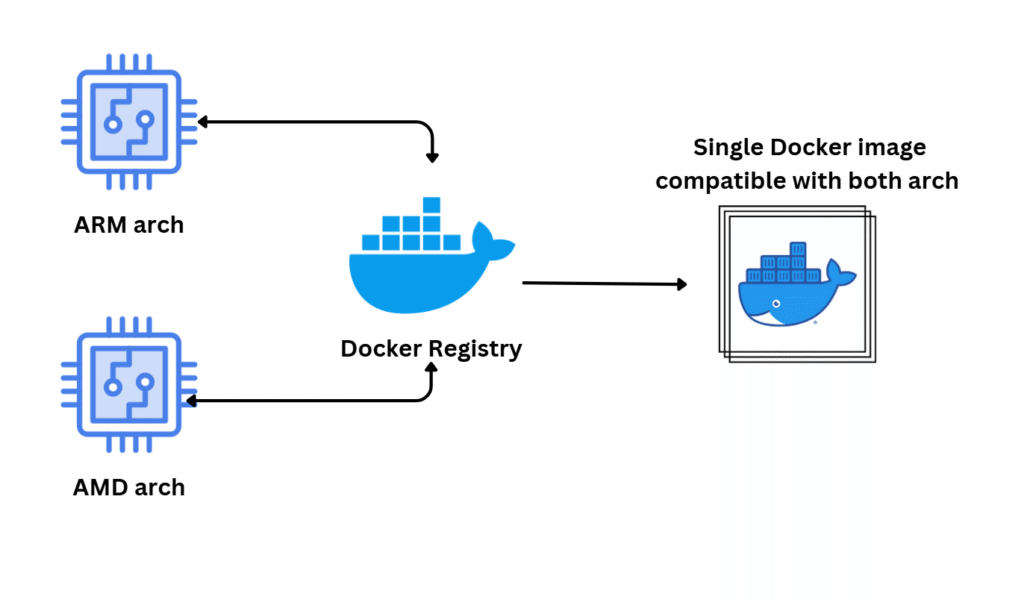
Source: Multi-Platform Docker Builds
When someone pulls the multi-arch image:
$ docker pull yourname/test-multy-arch:latestDocker automatically detects the current platform (e.g., amd64 or arm64) and pulls only the relevant version of the image.
You do not need to manually specify the platform when pulling — unless you want to pull for a different architecture than your current system.
Run a container from the load images:
docker run --rm test-amd
# or
docker run --rm test-arm

# Alternatively, you can run the container using the command below
docker run -it test-arm bash
# and then print the TARGETARCH environment variable from inside the container:
echo $TARGETARCH
Migrate the GPU Workloads to Amazon EC2 Server
When migrating workloads from Jetson Orin hardware to the AWS Cloud, selecting the right EC2 instance is a crucial first step. Since Jetson Orin is optimized for GPU-accelerated tasks like computer vision, AI inference, and deep learning, you’ll need an EC2 instance with GPU support to maintain performance and compatibility. AWS provides a wide range of GPU-powered instances designed for various machine learning and high-performance workloads. To help you choose the best fit for your needs, refer to AWS’s Recommended GPU Instances guide.
⚠️ Note: Jetson Orin is based on ARM64 architecture with an integrated NVIDIA GPU, but AWS does not currently offer EC2 instances that combine ARM CPUs with NVIDIA GPUs. GPU instances like G4 or G5 run on x86_64 (AMD64) architecture.
For this guide, we’ll use the G4 instance family as a reference. G4 instances are designed for cost-effective GPU-based inference and graphics workloads. They are equipped with NVIDIA T4 GPUs and offer a balance of price and performance, making them an excellent choice for migrating edge workloads from Jetson Orin to the cloud. You can learn more about these instances on the Amazon EC2 G4 Instances page.
You can either manually install the NVIDIA drivers, NVIDIA Container Runtime, and CUDA Toolkit, or simply use the preconfigured NVIDIA DLAMI AMI, which includes all necessary components out of the box.
The Migration:
In this guide, I’ll demonstrate how to fully set up a compatible AWS EC2 instance for GPU-based workloads—without using the prebuilt NVIDIA DLAMI (Deep Learning AMI). You’re welcome to choose whichever method fits your preferences best.
Instance Setup
For this example, I’ll use the g4dn.12xlarge instance type. You can choose a smaller one based on your budget.
- AMI: Ubuntu 22.04 LTS
- Key Pair: Configure a key pair for SSH access
- Storage: I used a 100GB gp3 root volume (adjust as needed, since we’ll install several tools)
- Tags: Set project-specific tags
- Security Group: Allow SSH (port 22)
- IAM Role: Attach an EC2 instance profile with ECR access so you can pull and push Docker images
hh
Installing GPU Tools
Before launching your instance, you can proceed in one of two ways:
- Use EC2 User Data to automatically run the entire setup during the instance’s first boot (recommended).
- Run the commands manually, step by step, to observe the output and verify each step.
I chose to run the setup via User Data for simplicity—no need to run sudo for every command, and it’s easier to reuse as Infrastructure as Code (IaC) later.
Scroll down in the Advanced Settings when launching your instance, and paste the following script in the User Data section:
#!/bin/bash
# Update system and install essentials
apt-get update
apt-get upgrade -y
apt-get install -y ca-certificates curl gnupg lsb-release unzip

# Install NVIDIA Driver
add-apt-repository ppa:graphics-drivers/ppa -y
apt-get update
DEBIAN_FRONTEND=noninteractive apt-get install -y nvidia-driver-560

# Install CUDA Toolkit 12.6
wget https://developer.download.nvidia.com/compute/cuda/repos/ubuntu2204/x86_64/cuda-keyring_1.1-1_all.deb
dpkg -i cuda-keyring_1.1-1_all.deb
apt-get update
apt-get install -y cuda-toolkit-12-6

# Add CUDA to environment
echo 'export PATH=/usr/local/cuda-12.6/bin:$PATH' >> /etc/profile.d/cuda.sh
echo 'export LD_LIBRARY_PATH=/usr/local/cuda-12.6/lib64:$LD_LIBRARY_PATH' >> /etc/profile.d/cuda.sh
chmod +x /etc/profile.d/cuda.sh

# Install Docker
mkdir -p /etc/apt/keyrings
curl -fsSL https://download.docker.com/linux/ubuntu/gpg | gpg --dearmor -o /etc/apt/keyrings/docker.gpg
echo "deb [arch=$(dpkg --print-architecture) signed-by=/etc/apt/keyrings/docker.gpg] \
https://download.docker.com/linux/ubuntu $(lsb_release -cs) stable" > /etc/apt/sources.list.d/docker.list
apt-get update
apt-get install -y docker-ce docker-ce-cli containerd.io docker-buildx-plugin docker-compose-plugin
systemctl enable docker
systemctl start docker

# Add ubuntu user to docker group
usermod -aG docker ubuntu

# Install NVIDIA Container Toolkit
apt-get install -y nvidia-container-toolkit
nvidia-ctk runtime configure --runtime=docker
systemctl restart docker

# Install QEMU for ARM Emulation
apt-get install -y qemu-user-static binfmt-support

# Install x11-xserver-utils
apt-get install -y x11-xserver-utils

# Install AWS CLI (for pulling Docker images from ECR)
curl "https://awscli.amazonaws.com/awscli-exe-linux-x86_64.zip" -o "awscliv2.zip"
unzip awscliv2.zip
./aws/install
rm -f awscliv2.zip && rm -rf aws

# Create verification script
cat > /home/ubuntu/verify-installation.sh << 'EOF'
#!/bin/bash
echo "==== Installation Verification ====" > /home/ubuntu/installation-status.txt
echo "Date: $(date)" >> /home/ubuntu/installation-status.txt

echo "NVIDIA Driver:" >> /home/ubuntu/installation-status.txt
nvidia-smi >> /home/ubuntu/installation-status.txt 2>&1

echo "CUDA Version:" >> /home/ubuntu/installation-status.txt
nvcc --version >> /home/ubuntu/installation-status.txt 2>&1

echo "Docker Version:" >> /home/ubuntu/installation-status.txt
docker --version >> /home/ubuntu/installation-status.txt 2>&1

echo "NVIDIA Docker Test:" >> /home/ubuntu/installation-status.txt
docker run --rm --gpus all nvidia/cuda:12.6.0-base-ubuntu22.04 nvidia-smi >> /home/ubuntu/installation-status.txt 2>&1

echo "==== End of Verification ====" >> /home/ubuntu/installation-status.txt
EOF

chmod +x /home/ubuntu/verify-installation.sh
chown ubuntu:ubuntu /home/ubuntu/verify-installation.sh
echo "@reboot ubuntu /home/ubuntu/verify-installation.sh" | tee -a /etc/crontab

echo "User data script completed at $(date)" > /home/ubuntu/user-data-complete.txt
chown ubuntu:ubuntu /home/ubuntu/user-data-complete.txt

# Reboot to finalize setup
reboot
Additional Notes
This script sets up CUDA 12.6, which is the highest version supported by JetPack 6.2.
Note: If you’re working with JetPack versions using lower CUDA versions (e.g., 12.4), you can omit the graphics drivers section and download the appropriate CUDA version directly.
For more information on CUDA + OS Compatibility:
Launch the instance and start working just as you would on your personal computer using QEMU. Follow the instructions in the previous section.
Find NVIDIA Docker Images for Your Use Case and Hardware
You can explore a wide variety of NVIDIA-optimized Docker images on the NVIDIA NGC Catalog: The NGC catalog.
This catalog allows you to search for container images tailored to specific use cases (such as AI, deep learning, and computer vision) and NVIDIA hardware platforms (like Jetson, Data Center GPUs, and more).
Use the filters and search bar to easily find the container that fits your development needs.
Summary
In this guide, we demonstrated how to go from working with NVIDIA Jetson Orin hardware to running GPU workloads in the cloud using Docker and AWS.
We covered the full process of initializing Jetson with JetPack, enabling access from your PC, and configuring Docker with NVIDIA GPU support on both Jetson and x86 systems.
You learned how to verify NVIDIA runtime integration, build and transfer Docker images between platforms, and write cross-platform Dockerfiles using Buildx.
We explored how to emulate Jetson’s ARM64 architecture using QEMU on an x86 machine, and how to migrate workloads to AWS by selecting the right EC2 GPU instance type—focusing on the G4 family for cost-effective inference tasks.
A complete setup script was provided to configure an EC2 instance from scratch without relying on NVIDIA DLAMI, including installation of drivers, CUDA Toolkit, and Docker. Finally, we introduced the NVIDIA NGC Catalog as a valuable resource for discovering prebuilt containers optimized for specific use cases and NVIDIA platforms.
Whether you have physical Jetson hardware or not, this guide equips you with the tools and practices needed to build, test, and deploy CUDA-enabled applications across local and cloud environments.
I hope you enjoyed the article and learned something new from it 🙂.
Curious how to actually run CI-CD with Jetson workloads and especially in the cloud? Part 3 will walk you through it step by step.